MCP integration guide
Connect Datasigma
to your AI tool.
Search business contacts, reveal contact details, and enrich records in Claude, ChatGPT, Perplexity, or another MCP-compatible AI tool. One Datasigma connection URL brings your contact data into the tools you already use.
Choose your AI toolYour MCP server URL
https://mcp.datasigma.io/mcp
Choose your AI tool
MCP (Model Context Protocol) lets AI tools use Datasigma through a shared connection standard. Use the same server URL above for each platform.
Choose OAuth to sign in to Datasigma and authorize access. Datasigma supports automatic client registration, so compatible clients can connect without a manually supplied client ID or secret. Never paste credentials into a chat.
Claude

Follow these steps to connect your Datasigma account.
-
Open Settings, then Connectors
In Claude, open Settings. Select Connectors in the left sidebar, as highlighted below.
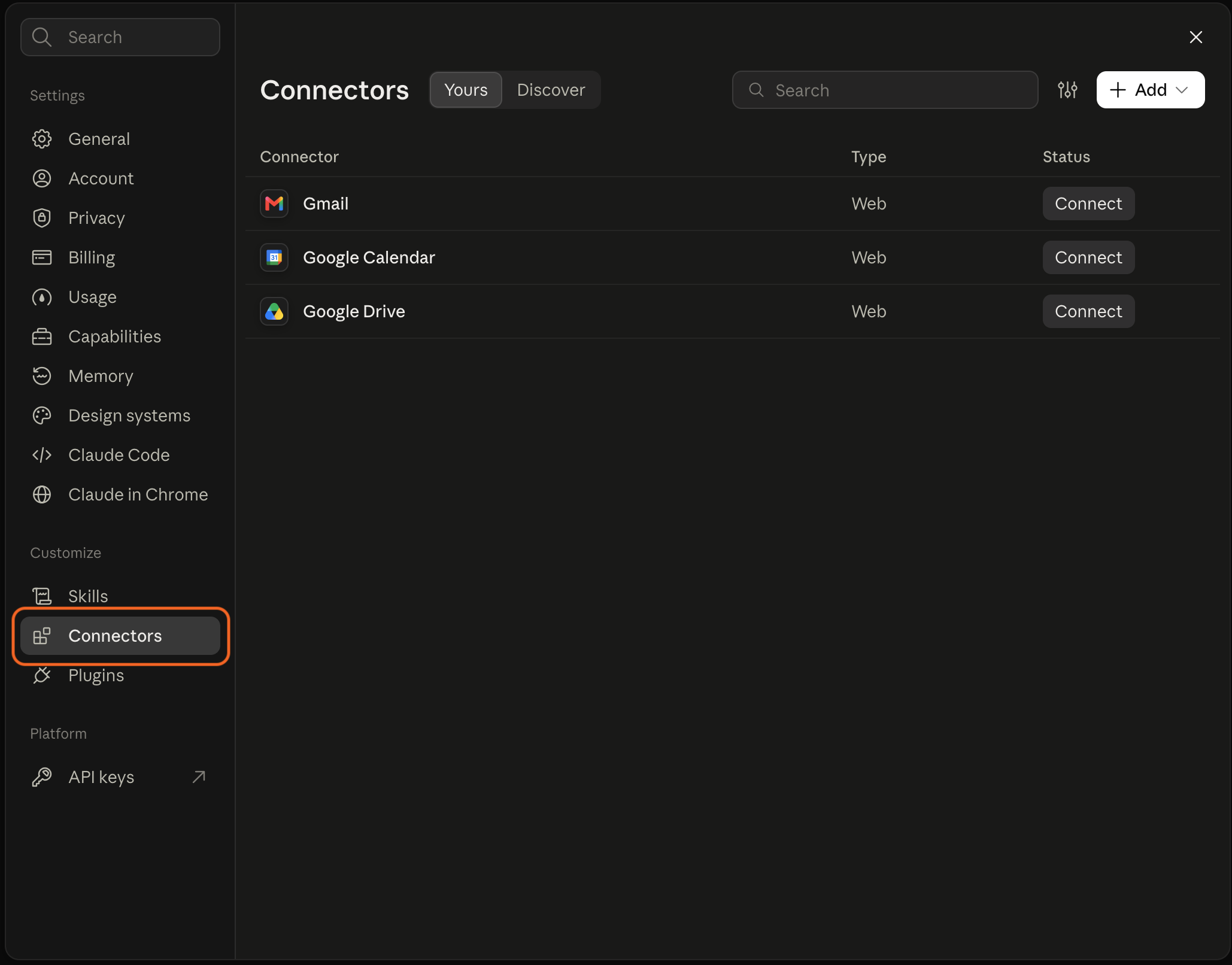
Find Connectors in Claude’s settings. -
Add a custom connector
Click + Add in the top-right corner, then select Add custom connector.
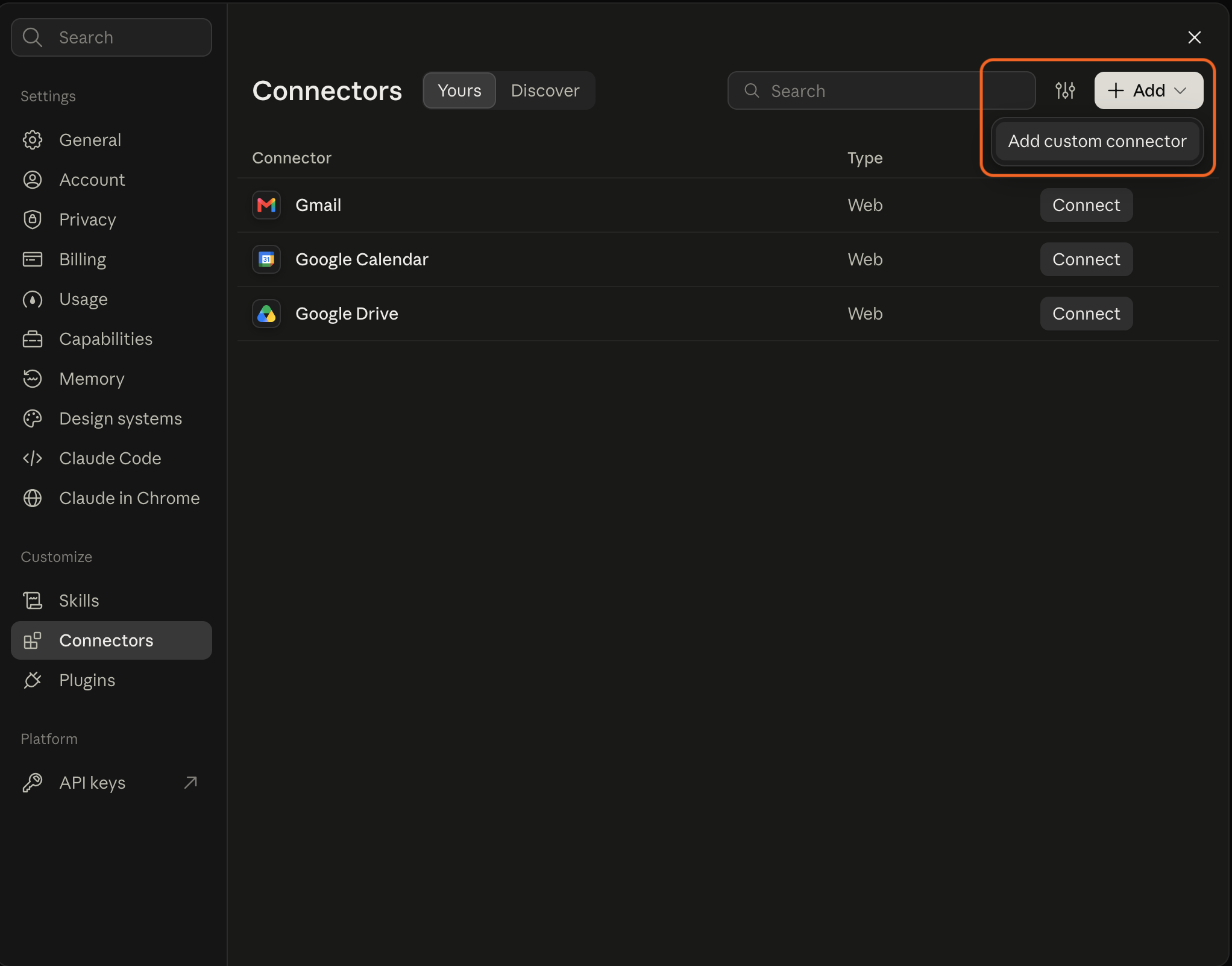
Choose Add custom connector from the Add menu. -
Enter the Datasigma server URL
Enter Datasigma as the connector name and paste
https://mcp.datasigma.io/mcpinto the server URL field and then click Continue.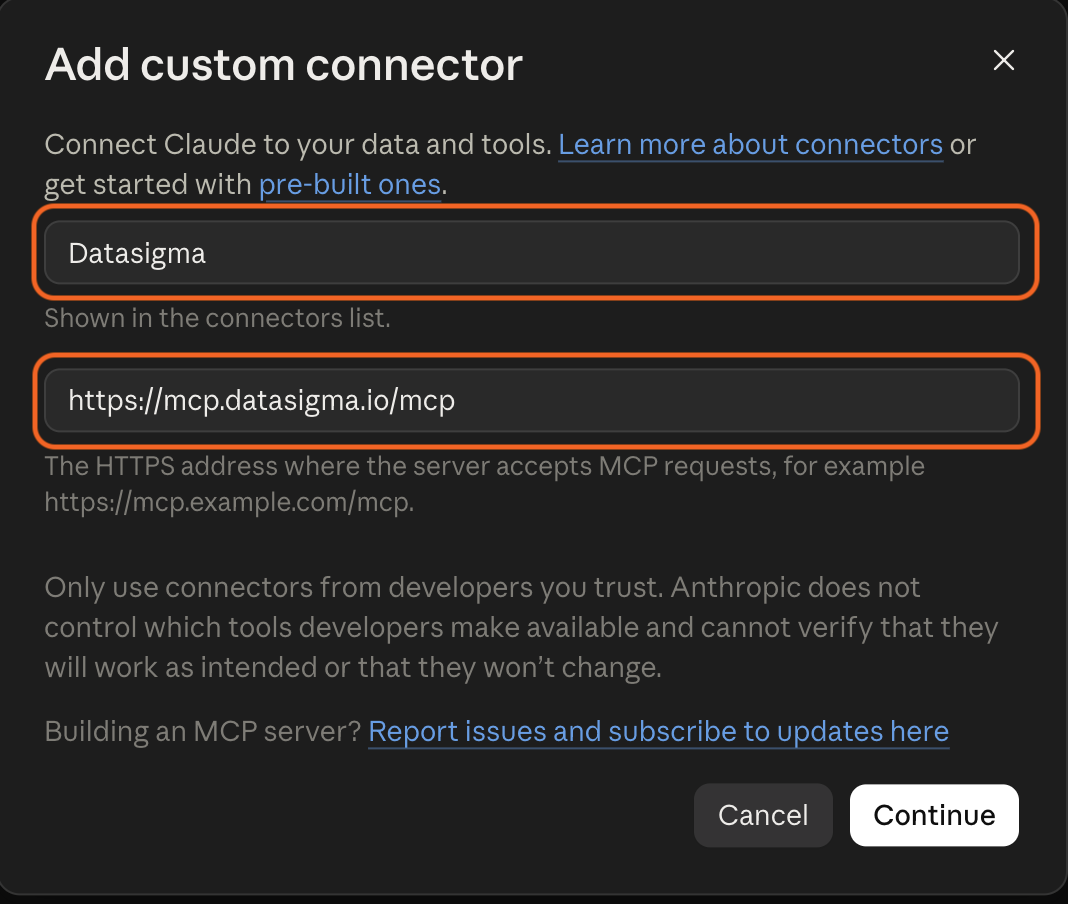
Name the connector and enter the complete MCP URL. -
Confirm sign-in settings and click Add
Under Authentication, keep Sign in now selected. Under OAuth client, select Register automatically. You can leave Request headers and Advanced unchanged. Click Add at the bottom.
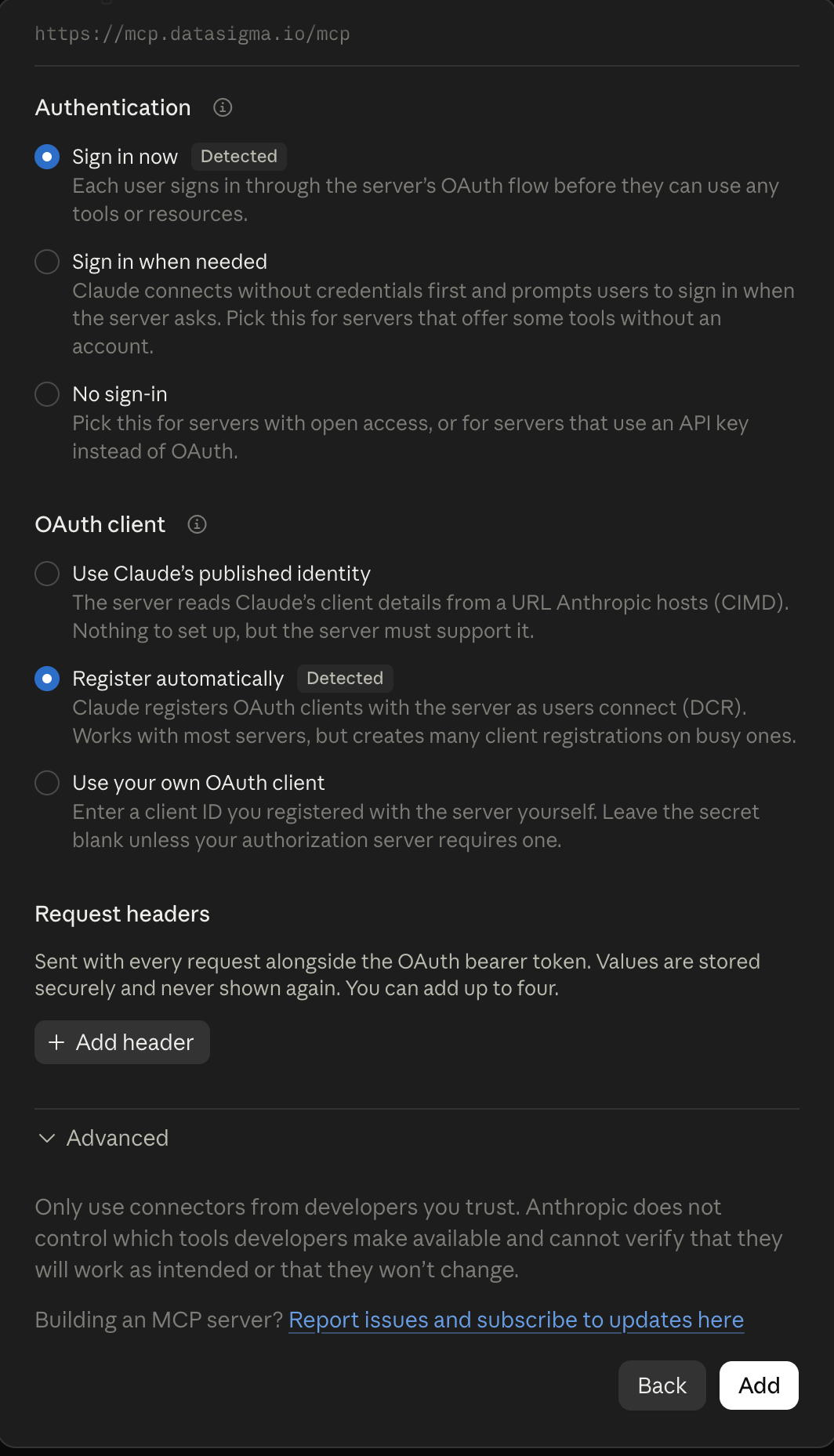
Use the detected sign-in settings, then click Add. -
Authorize your Datasigma account
Sign in to Datasigma if prompted. On the authorization page, review the requested access to search, reveal and enrich contacts, and check your balance. Click Authorize to finish connecting.
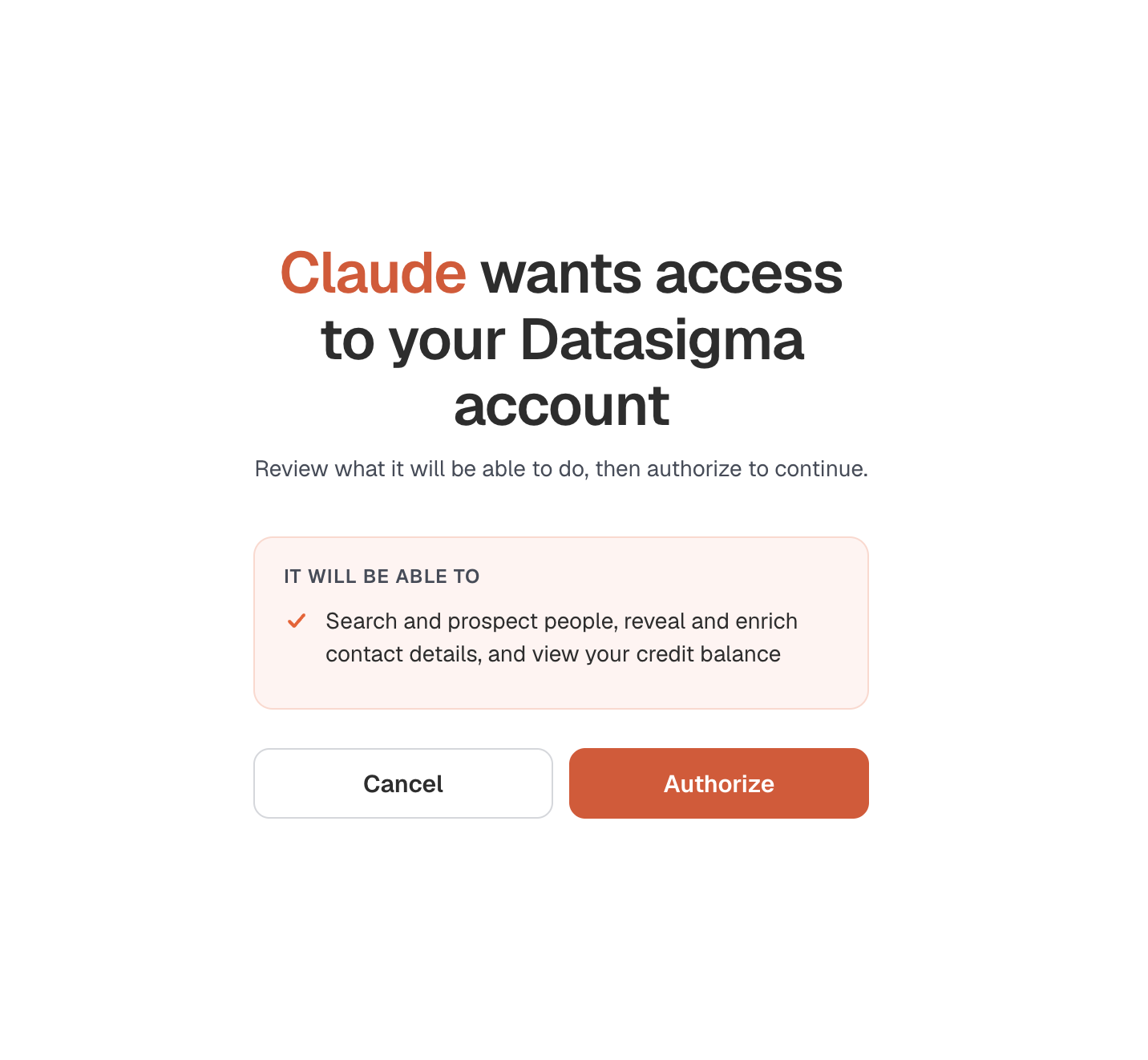
Review the access request and click Authorize.
Try your connection
Return to Claude and start a conversation. Enable Datasigma from + → Connectors, then ask: “Find HVAC business owners in California” Approve the tool call if prompted. Datasigma will search for matching contacts. Searches use Datasigma credits.
Managed workspaces may require an owner to add the connector first. Menu labels can vary by version; see Claude’s setup guide for current access and settings.
ChatGPT

Follow this screenshot walkthrough to connect Datasigma in ChatGPT.
-
Open Plugins
On ChatGPT’s start screen, click Plugins below the message box.
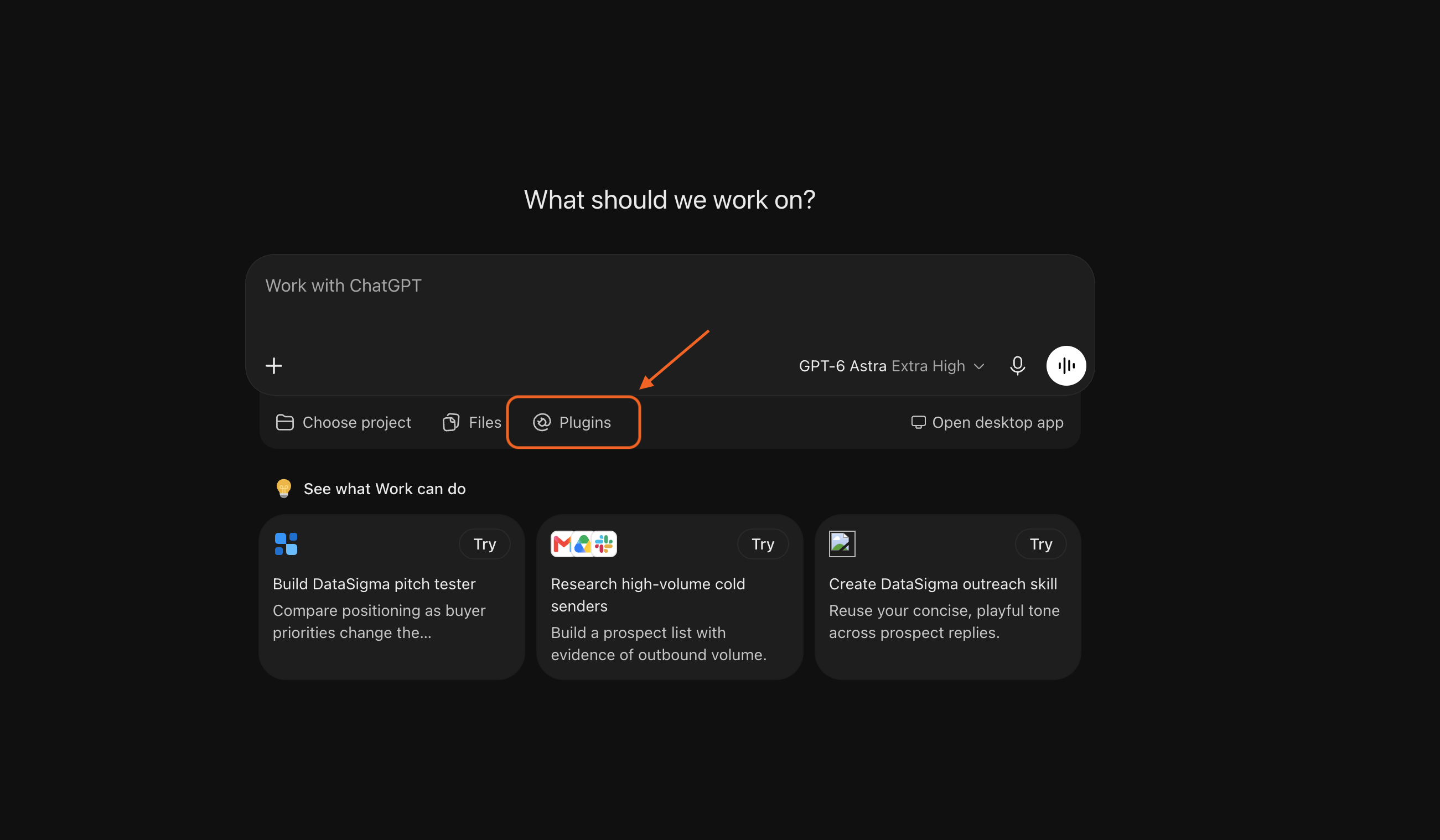
Open the Plugins menu. -
Choose Connect plugins
In the Plugins menu, select Connect plugins.
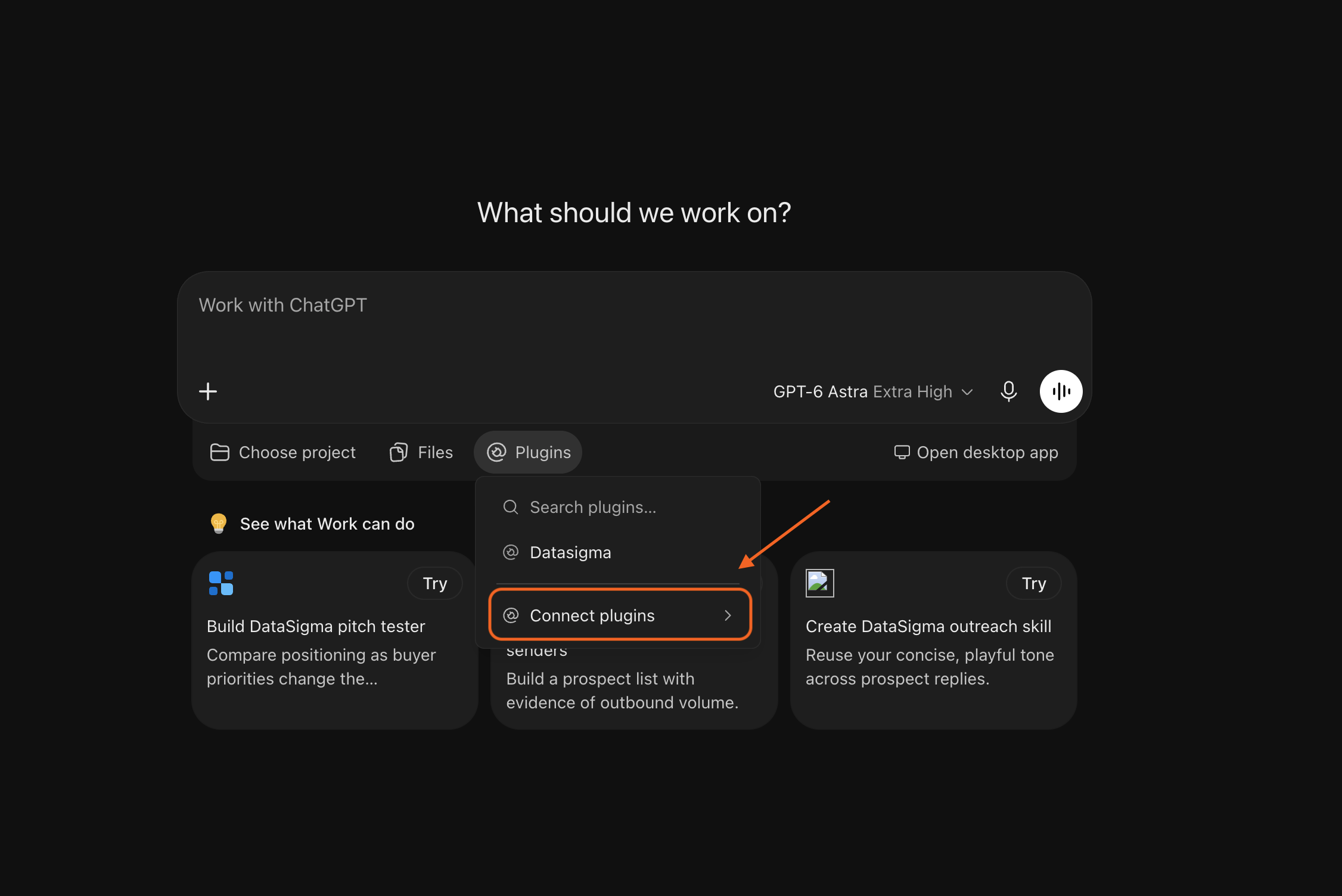
Select Connect plugins to see the available connections. -
Browse all plugins
In the submenu, click Browse all plugins at the bottom to open the plugin directory.
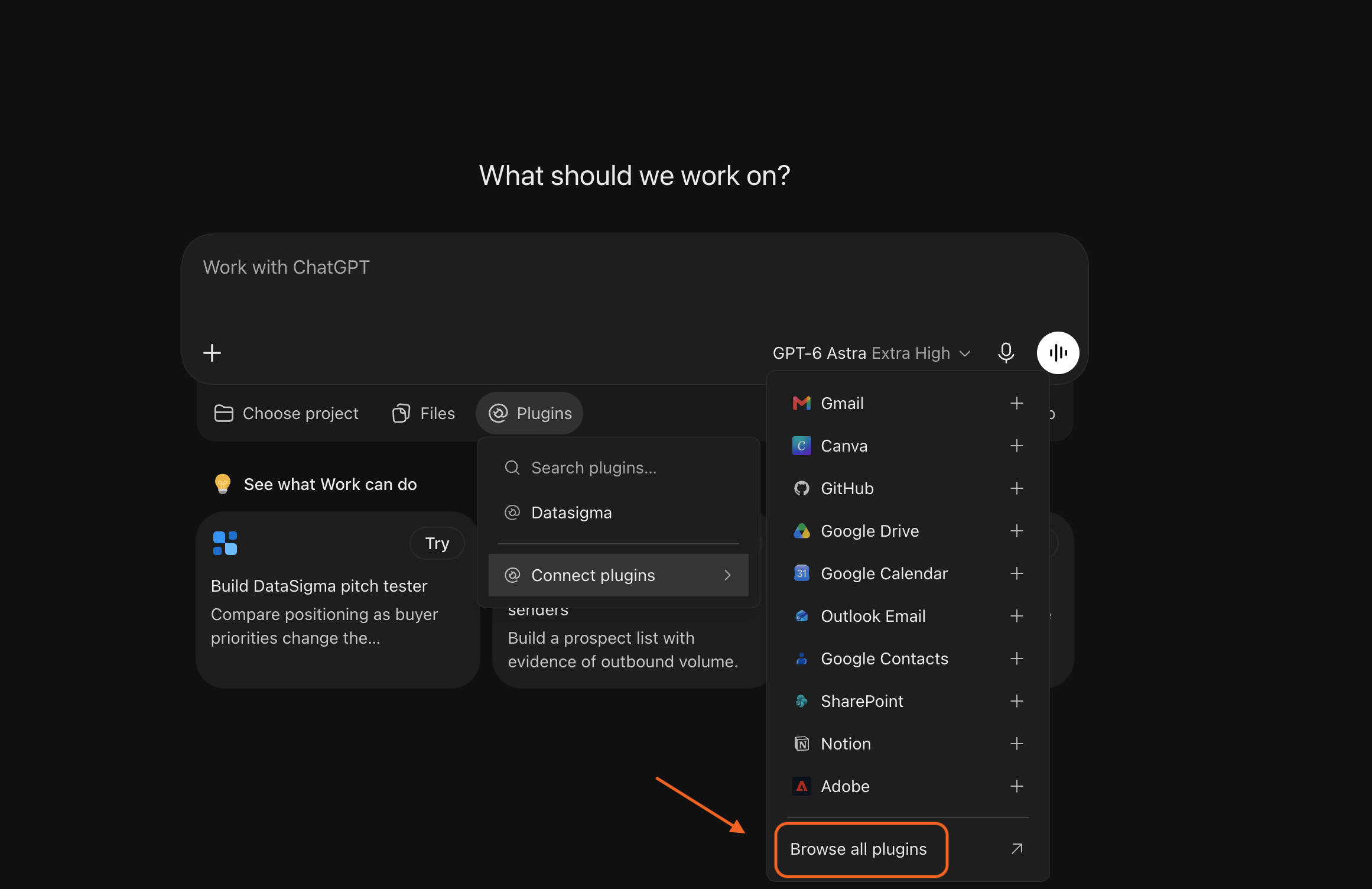
Open the full plugin directory. -
Add a custom MCP server
On the Plugins page, open Add in the top-right corner and select Add custom MCP server.
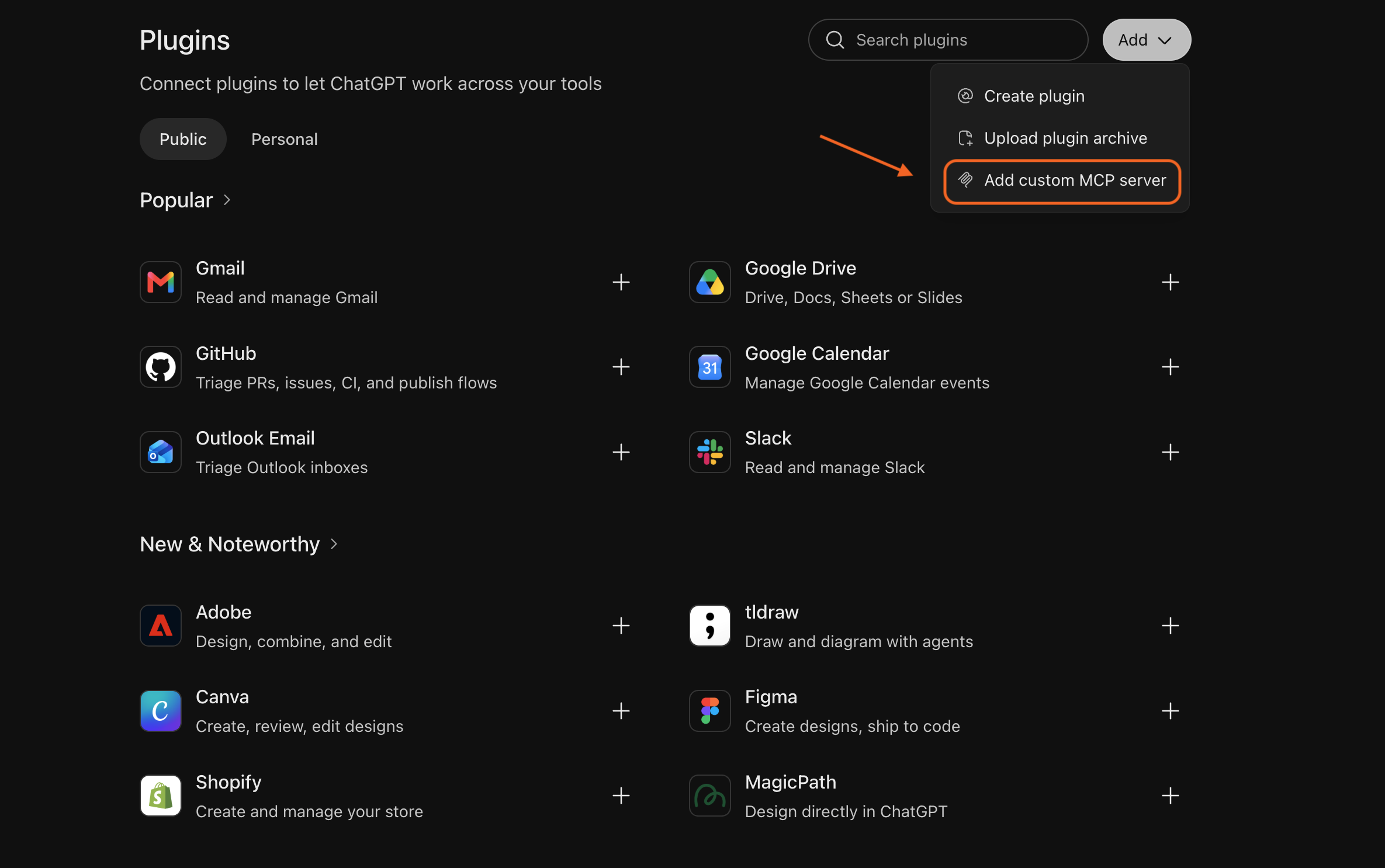
Choose Add custom MCP server. -
Enter the Datasigma connection details
Enter Datasigma as the plugin name and paste
https://mcp.datasigma.io/mcpinto the Server URL field under Connection.Select OAuth for Authentication. Review the notice, check I understand and want to continue, then click Create as a plugin.
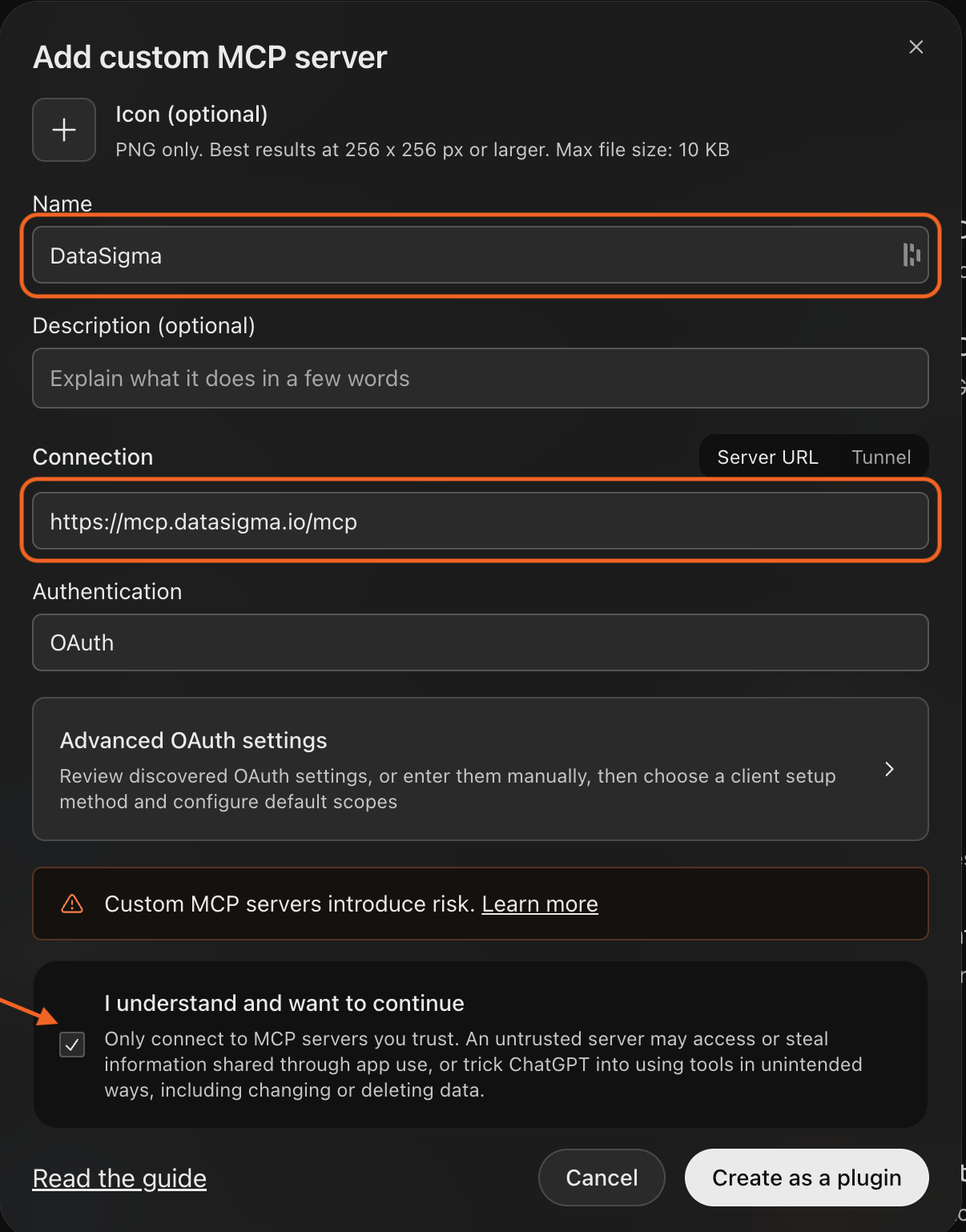
Enter the name and URL, choose OAuth, and create the plugin. -
Connect your Datasigma account
Install the new plugin if prompted. When the connection dialog appears, review it and click Continue to Datasigma. Sign in to your Datasigma account if needed, review the requested access, and click Authorize.
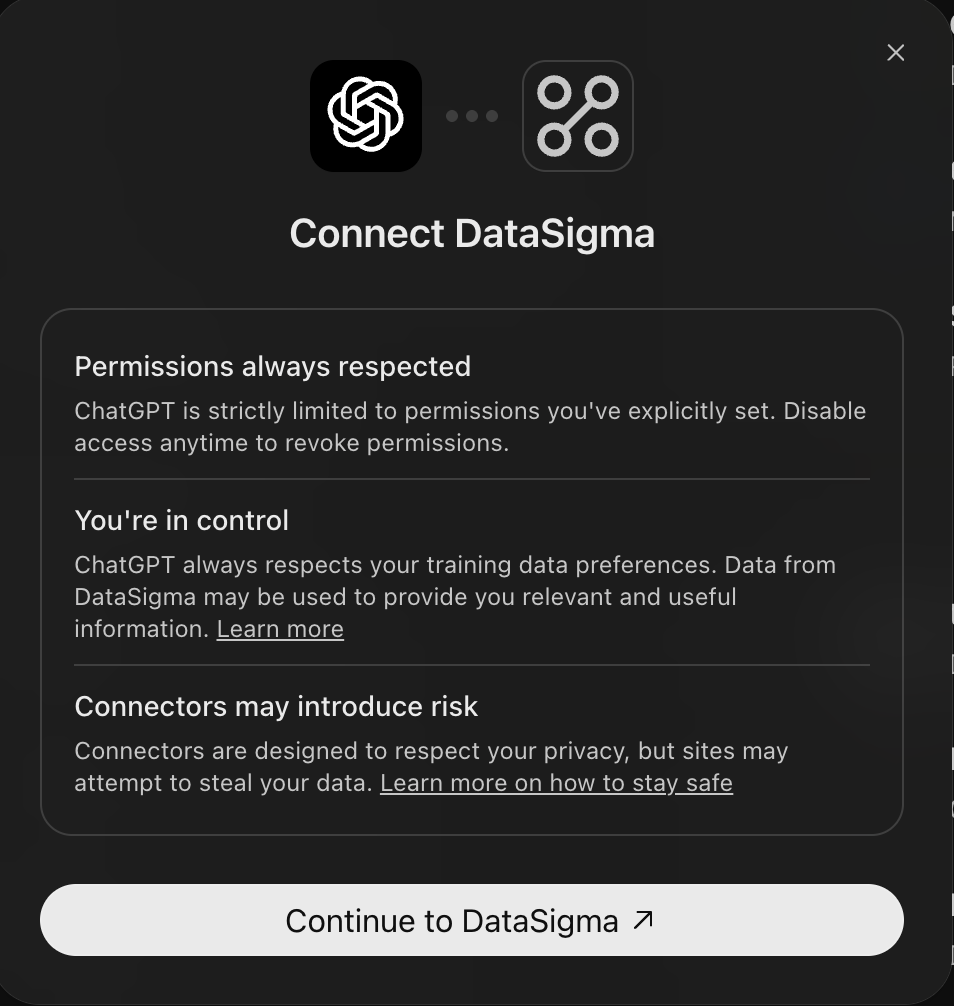
Continue to Datasigma to complete sign-in and authorization.
Try your connection
Return to ChatGPT and select Datasigma from Plugins, or type @ and choose it. Ask: “Find HVAC business owners in California” Approve the tool call if prompted. Datasigma will search for matching contacts. Searches use Datasigma credits.
Workspace permissions may restrict custom servers. Follow OpenAI’s custom MCP setup guide for the current interface and authentication options.
Perplexity

- Add a remote connector. Open Account settings → Connectors → + Custom connector, then select Remote.
- Configure Datasigma. Enter Datasigma as the name and paste the server URL. Choose OAuth authentication and Streamable HTTP transport.
- Authorize access. Review the acknowledgement and choose Add. Open the Datasigma connector card to sign in, authorize access, and enable it.
- Try a request. Ask Perplexity to use Datasigma: “Find HVAC business owners in California”. Enable or select the connector in your conversation or Computer workflow as needed.
Custom connectors depend on your plan and organization permissions. See Perplexity’s remote connector guide for current settings.
Using another AI tool?
Add the URL above as a remote MCP server in your tool’s integration settings. Select Streamable HTTP and OAuth if prompted, authorize your Datasigma account, and enable its tools. Your client needs support for remote MCP and Datasigma’s authentication flow.
Try your first request
Select Datasigma in your AI tool, then ask:
Find HVAC business owners in California
Your AI tool can use prospect_people to search for matching contacts. Results depend on available coverage, and searches use Datasigma credits.
Search results are masked. After reviewing them, you can ask:
Reveal the first two contacts from those results and include their source URLs.
Searches and reveals are separate, credit-consuming actions. Results depend on available coverage; an email availability flag does not reveal the address.
Tools & credits
MCP uses your Datasigma balance. Check the returned credits_consumed value after a search, reveal, or enrichment.
| Tool | What it does | Credit cost |
|---|---|---|
get_credit_balance | Check your balance. | Free |
prospect_people | Search contacts by role, location, and company filters. Returns masked results. | 1 per 25 results returned, rounded up. Empty pages are free. |
reveal_contacts | Unlock details for contact IDs from a search. | 1 per contact returned. IDs not found are free. |
enrich_contact | Look up a contact by email, or by full name and company domain. | 1 on a match. No match is free. |
Search page sizes are 25, 50, or 100. For example, a page of 25 results plus two revealed contacts uses 3 credits.
Troubleshooting
I cannot add a custom connector
Check your AI tool’s plan, custom integration settings, and workspace permissions. If an administrator manages your workspace, ask them to enable custom MCP connections or add Datasigma for you.
Sign-in fails or my AI tool asks for a client ID
Check that the URL is exactly https://mcp.datasigma.io/mcp. Use automatic or dynamic client registration if available. Complete Datasigma sign-in and authorization in the browser window. If you dismissed it, return to the connector and choose Connect again.
The URL shows an authorization error in my browser
The URL is a tool endpoint, not a web page. An unauthenticated request can return an authorization error. Add it as a remote MCP connection in your AI tool and complete sign-in to use it.
My AI tool does not use Datasigma
Select or enable Datasigma for the current conversation, explicitly ask your AI tool to use it, and approve the tool call. In ChatGPT, mention the installed plugin with @. If authorization has expired, reconnect from your integration settings and retry your request.
I see “Insufficient credits” or a rate limit
Check your balance and manage credits in Datasigma. For rate limits, wait before retrying and request fewer pages or smaller batches.
How do I disconnect?
Deselect Datasigma in the conversation’s tool menu to stop using it there. To remove the connection, open your AI tool’s plugins or connectors settings, find Datasigma, and choose Disconnect, Remove, or Uninstall, depending on the platform.
Still stuck? Contact Datasigma support with the step that failed and the error message. Leave out passwords and tokens.